
Migrating from v3 to v4
Move your existing garages into the v4 admin panel
v4 saves garage locations in the database. Import your v3 locations once, then manage them through /garageadmin.
Back up and replace the files
Stop jg-advancedgarages and back up the resource and your database. Replace the resource with the v4 files, keeping the folder name jg-advancedgarages.
Check the v4 dependencies before starting the new version.
Prepare your config
Use the new config/config.lua and copy over your settings. Replace these location tables with your v3 versions, keeping their garage names unchanged:
Config.GarageLocationsConfig.JobGarageLocationsConfig.GangGarageLocationsConfig.ImpoundLocations
Copy any customised interior, marker, blip and garage settings too. The importer uses these when creating locations.
Update the database
Keep Config.AutoRunSQL = true to apply the database updates when v4 starts. If you run SQL manually, run the new install/run-qb.sql (QBCore/Qbox) or install/run-esx.sql (ESX) in your server's database first.
Fully restart your server. Resolve any SQL errors before importing locations.
Import your garages
Open Garages in /garageadmin and click Import. Choose Existing config to import your public, job, gang and impound locations, then click Import.
For private garages, use v4.0.2 or newer. Open Private & Shared Garages, click Import and choose Legacy private garages. This keeps every listed owner and each garage's original name, so parked vehicles stay linked to the right garage. It doesn't create a garage for sale or make owners' personal vehicles available to each other.
Existing garage IDs are skipped, including disabled locations. Importing again won't overwrite their settings or access. Legacy records are kept in player_priv_garages.
If an entry reports invalid owners, coordinates or duplicate names, correct that legacy entry and import again. Failed entries don't receive partial owner access.
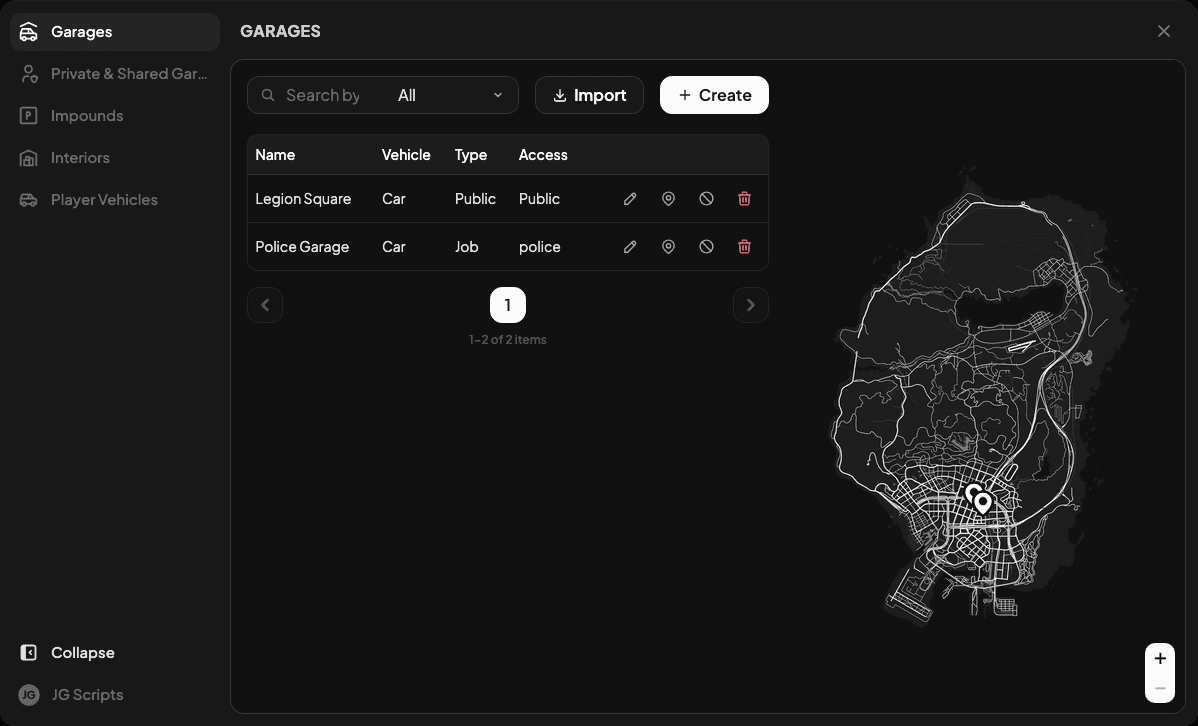
Check access and vehicles
Test opening, storing and retrieving vehicles at your imported garages and impounds. Check job and gang restrictions. Legacy private-garage owners retain Owner access. Restart jg-advancedgarages and check that each owner can retrieve their previously parked vehicles.
Imported garages have unlimited parking until you set a limit. Make future location changes in the Admin Panel.
For new housing or third-party integrations, use the server registration exports.
Last updated 28 September 2026