
Admin Panel
Create and manage garages in-game
Open /garageadmin with admin permissions. Locations and their settings are saved in the database.
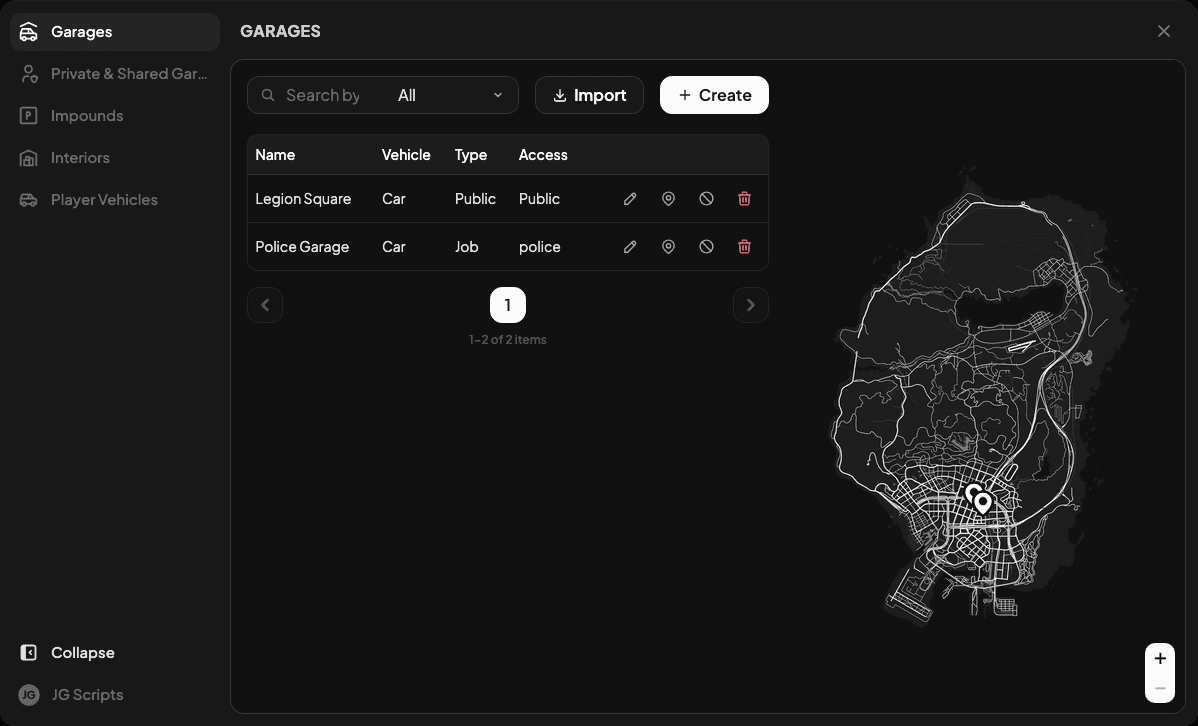
Choose a location type
Open Garages, Private & Shared Garages or Impounds, then click Create. Use the pencil button to edit an existing location. To import old locations, follow Migrating from v3 to v4.
Set up the location
Choose the name, vehicle type and who can use it. Under Locations, add spawn points and an open interaction. Turn off Use open interactions for storing vehicle if parking needs a separate interaction.
Save
Save the form, then visit the entrance and test opening, parking and retrieving a vehicle.
Garage access
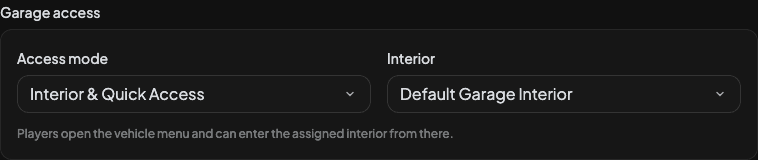
| Mode | How players enter |
|---|---|
| Interior & Quick Access | Open the vehicle menu, with an option to enter the interior |
| Quick Access Only | Open the vehicle menu without an interior |
| Interior Only | Enter the assigned interior directly |
Create interiors from the Interiors sidebar tab, then assign one here. Interior Only needs an enabled interior with suitable vehicle positions. Quick Access Only removes the assigned interior and disables tours.
Parking capacity
Choose unlimited parking or a limit for each player/member or the whole garage. You can't set a limit below current use.
Parked vehicles, owned trailers and vehicles listed for sale use spaces. Vehicles taken out or impounded don't. Limits require separate garage storage.
Private garages and spawners
See Private & Shared Garages for members and sales, or Spawner vehicles for configurable vehicle lists.
Database update
Keep Config.AutoRunSQL = true to apply database updates on start. For manual updates, run the updated install/run-qb.sql (QBCore/Qbox) or install/run-esx.sql (ESX).
Last updated 18 September 2026