
Installation
Install JG Used Vehicles and prepare it for first use
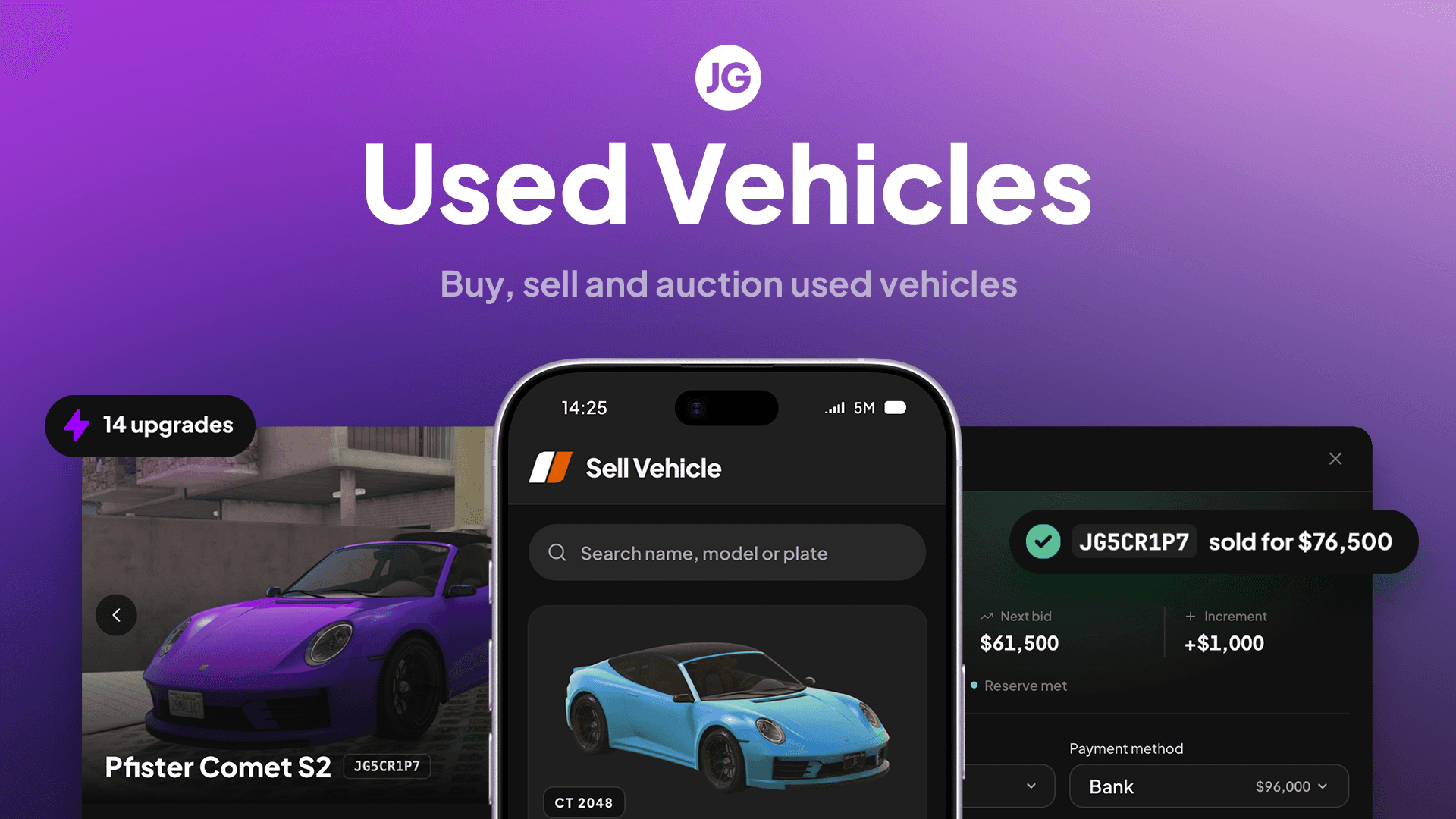 JG Used VehiclesPurchase on the JG store
Installation
Download and unzip
Unzip the jg-usedvehicles-bundle and open the jg-usedvehicles-bundle folder.
Add the resource to your server
Drag jg-usedvehicles into a new folder called [jg] within your server's resources folder.
Install the dependencies
Install the latest versions of ox_lib and oxmysql.
Start your framework, oxmysql and ox_lib before jg-usedvehicles.
Update your server.cfg
Add this line to server.cfg after your framework and dependencies:
ensure [jg]Check the database installation
Config.AutoRunSQL = true is enabled by default. On the first start, JG Used Vehicles creates its database tables and adds the required columns to your framework's vehicle table.
Check the server console for this message:
[JG Used Vehicles] Database tables are ready.If the automatic installation fails, stop the resource and run install/install.sql in your database software. Start the resource again after the query finishes without errors.
Configuration
Core options live in config/config.lua. Check these before opening your server:
Config.Frameworkdetects Qbox, QBCore or ESX when set to"auto".Config.FuelSystemandConfig.VehicleKeysshould match the resources on your server.Config.Phone,Config.Tablet,Config.NotificationsandConfig.SocietyBankingcontrol the main integrations.Config.DistanceUnitselects"km"or"mi"for mileage across CarTrader, phone apps and dealership/admin screens.Config.SpeedUnitcontrols speed only.Config.InteractionMethodcontrols how players interact with dealerships.Config.MarketplaceBrandingchanges the CarTrader name, colours and logos.
Gameplay settings such as listing limits, fees, auctions and finance terms are managed in the Settings tab of /useddealeradmin. They are stored in the database.
JG Vehicle Mileage always supplies kilometres internally. Used Vehicles converts these into Config.DistanceUnit; its display setting does not need to match. Choose your distance unit before creating listings: changing it later does not migrate stored stock or listing mileage.
Image uploads
Vehicle photography requires a remote image provider. Choose Qbox CDN, Fivemanage, Cloudflare R2 or AWS S3, then add its credentials to config/config.photos.lua.
Keep config/config.photos.lua private. Don't post its API keys in GitHub repositories, support tickets or screenshots.
Next step
Create your first location after the resource and image provider are working:
Setting Up Locations/used-vehicles/setting-up-locationsFully restart your server after changing these files. Don't rely on restarting jg-usedvehicles alone during the first installation.
Last updated 5 October 2026